Apple Iphone imap or pop email setup for pchelper916 mailbox accounts
-
Go to Settings > Mail, then tap Accounts.
-
Tap Add Account, tap Other, then tap Add Mail Account.
-
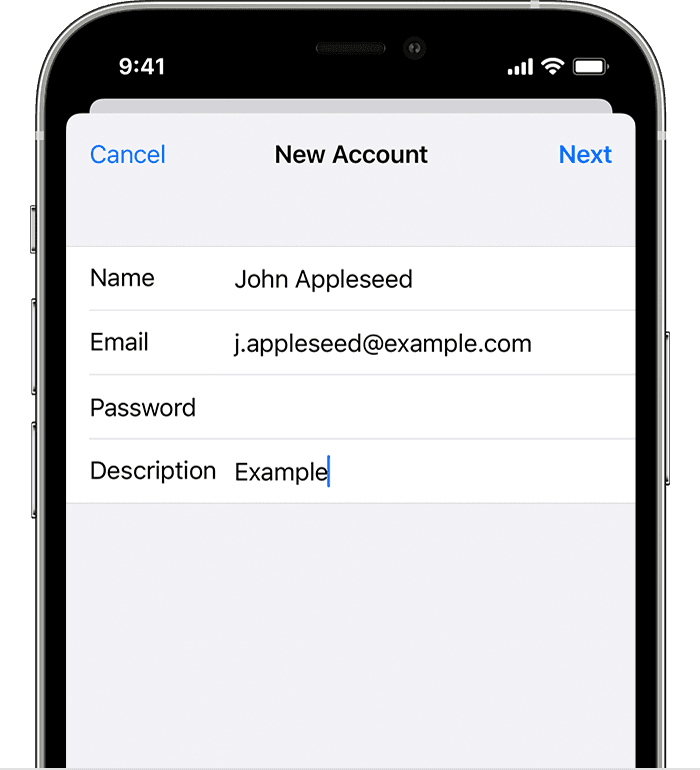
Enter your name, email address, password, and a description for your account.
-
Tap Next. Mail will try to find the email settings and finish your account setup. If Mail finds your email settings, tap Done to complete your account setup.
-
Choose IMAP or POP for your new account. If you aren’t sure which one to choose, contact your email provider.
-
Enter the information for Incoming Mail Server and Outgoing Mail Server. Then tap Next. If you don't have this information, try to look it up.
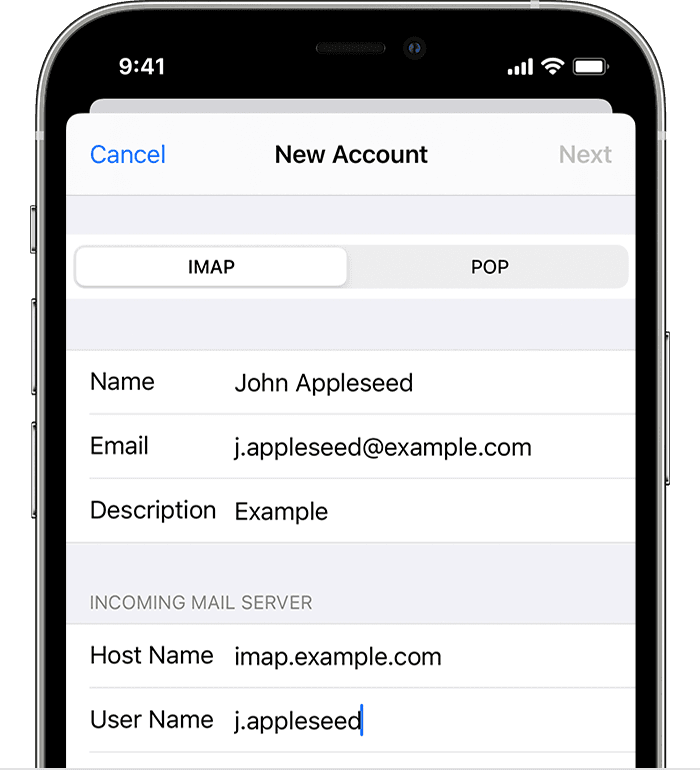
- imap server enter server1.pchelper916.com
- imap server port enter 993
- imap server encryption enter ssl/tls
- pop server enter server1.pchelper916.com
- pop server port enter 995
- pop serve encryption enter ssl/tls
- outgoing email smtp server enter server1.pchelper916.com
- outgoing email port enter 465
- outgoing email encryption enter ssl/tls
- username enter email address
-
If your email settings are correct, tap Save to finish. If the email settings are incorrect, you'll be asked to edit them.
If Mail can't find your account settings automatically
If Mail can't find your email settings, then you need to enter them manually. Tap Next, then follow these steps:
If you still can't set up your email account or save your email settings, contact your email provider.
Contact Our Team
If you still can't find an answer to what you're looking for, or you have a specific question, open a new ticket and we'd be happy to help!
Contact Us